

From now on, it’s much easier and faster: in the Proof Shop, you can call up and reorder entire orders or individual proofs directly from your order history. This saves you from having to re-enter every detail and gives you the assurance that all settings will be exactly the same as last time. With just a few clicks, your proofs are reordered – reliably, easily and in no time at all.
What exactly is new?
You can find your order history in your customer account. There are two new options there:
- Repeat entire order: With one click, you can add all proofs from a previous order back to your shopping basket. This is particularly useful if you need the same proofs for a reprint or want to use identical settings multiple times.
- Reorder individual items: You can select a specific proof from a previous order and add it back to your shopping basket. This allows you to quickly reorder individual items without having to copy the entire order.
No matter which option you choose, you can easily transfer the settings from a previous order without having to reconfigure them each time.
Your benefit
Many customers regularly proof the same data or slightly modified versions. Imagine you want to proof a brochure again, but this time with an updated file. Previously, you had to re-enter all the parameters in the shop – from paper and colour profile to format and media wedge. With the new function, all you have to do is call up the old order, apply the saved settings and upload the new file. This not only saves you time, but also prevents input errors.
How it works
- Log in to your account.
- Open your order history.
- If you would like to repeat the entire order, you can click on ‘Order everything again’ directly there. All proofs from this order will then be automatically added to the shopping basket.
- If you would like to reorder a single proof, first click on ‘Show’ in the order history, open the order details and select the desired item. Then click on ‘Order item again’ to add this proof to your shopping basket again.
- The selected proofs are added directly to your shopping basket and you can proceed to checkout as usual.
- In the final step, upload the new file – all settings have already been applied, so you do not need to adjust anything else.
We are constantly working to make our shop even more convenient for you. This update is another step towards making it as easy and quick as possible for you to order your proofs.


More articles related to this topic:
Proof GmbH 2020 once again Fogra and Fogra “Spot Cert” certified

Proof.de / Proof GmbH is a Member of Fogra

Proof GmbH is a member of Fogra – Forschungsinstitut für Medientechnologien e.V.. Why? In recent years, we have been able to draw on the support of Fogra with numerous projects, or work together with Fogra, for example for Fogra58 beta – Textile-RGB (where Matthias Betz was also able to report on our experiences as a speaker at the Fogra Colour Management Symposium 2020 in Munich as part of the presentation “Proofing of Fogra58beta”) or have contributed test prints and proofs to the research project “11.004L – Improving the printability … read more
Proof.de Support Chat Software updated

Today we updated our chat software Livezilla Pro to offer you even more comfort and speed in the chat. Simply contact us directly via chat … a lot of minor details or brief queries can be dealt with quickly and conveniently.
Proof.de is featured twice in the “Fogra Aktuell” magazine

In the current issue of Fogra News “Fogra Aktuell” Proof GmbH is involved in two places. Firstly, a summary of the Fogra report on our first FOGRA55 certification for seven-colour printing with extended colour space in CMYKOGV appeared. You can also find more information on our FOGRA55 certification on the Fogra website: https://fogra.org/en/press-releases/fogracert-erste-cpc-zertifizierung-fuer-fogra55-cmykogv-330 and on proofing.de: And secondly, there was a report on the completion of the research project for textile digital printing, FOGRA58, in which we were allowed to investigate and test the proof capability of the new textile … read more
Proof.de: New video online

In this short image video we – the Proof GmbH – introduce us and our work. Find out who we are and what drives us. What do you think of our short film?
Update of shop.proof.de successfully completed

Shortly before Christmas, we initiated a major shop update, and adapted and improved numerous detail functions. But we are especially pleased that the update went without any major disruption for our customers, and that the shop was online and accessible for only a few hours, even though the update had to be carried out at the live shop. The most important point for us was to update the upload area. The new file upload can now process up to 2GB per file and up to 50 files per article and: … read more
Order Proofs: shop.proof.de is online
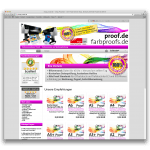
From now on you can conveniently order proofs at shop.proof.de: At shop.proof.de is available under shop.proof.de a comfortable online shop with numerous benefits available: Convenient Data Upload: Each item one or more files can now be uploaded. So you can assign your data directly to the individual proofs. Payment by Paypal, direct debit, invoice etc .: You are on shop.proof.de with Paypal and direct debit payment methods more available. Of course you can continue to conveniently order proofs on invoice. See Previous orders, invoices, data uploads: You can always check your … read more
Even more safety: shop.proof.de now with strong SSL encryption
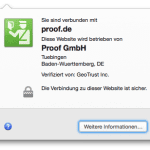
We have used the past few weeks, to protect our proof Store shop.proof.de with a SSL certification (EV). Thus the whole communication between you and the shop is protected with a high level of encryption. You recognize the active encryption by slight green bar in the browser. If you click on the lock, you will get more information about the certificate and the issuing body GeoTrust. And you can see at first glance: you are really connected to the Proof GmbH in Tübingen.
Proof. de offers proofs according to the latest tolerance criteria of ISO 12647-7:2016

The ISO 12647-7 proofing standard was revised in November 2016 and the test criteria for FograCert contract proof creation were adapted. We have now incorporated these changed criteria into our proofing system and are now working to the stricter tolerances of the latest ISO 12647-7:2016. Why hardly anything changes for our Proof customers The good news is: you won’t notice that our proofs are now precisely produced according to the latest standards. Why? Quite simply: Because our demands on our proofing system, our FIERY proofing software, our EFI proofing papers and … read more